
Hello, blog reader. Today we're going to see how to Choosing the right laptop as a student can be confusing because of the many models, specifications, and price ranges available. Whether you're on a tight budget, need a reliable mid-range device, or want a high-end machine for design, coding, or content creation, the right laptop can make your college experience smoother and more productive. This guide covers everything you need to know, from essential specs to operating system choices. It also provides clear laptop recommendations for all budgets, including Chromebooks. Each product includes ratings and space for your official, correct buying links so you can use this directly in the blog

.
Related Posts You Might Like
- Budget students (₹ / $ range): Prioritize RAM (8GB), SSD (256GB if possible), and battery life. Expect lightweight performance for notes, browsing, and streaming.
- Mid-range students: Look for better CPUs (modern Intel Core i5 / AMD Ryzen 5), 8–16 GB RAM, and a good display. Great balance for coding, light photo editing, and multitasking.
- High‑end students/creatives: Prioritize powerful CPUs, 16GB+ RAM, fast NVMe SSDs, and a color‑accurate display (OLED/IPS). Consider thin & light, but don’t compromise on thermals.
- Chromebooks: Best for web‑first students and great battery life. Choose models with a good keyboard and at least 4–8 GB RAM.
1) Start with what you actually need
- Coursework type: Writing, browsing and Zoom? Any basic modern laptop will do. Video editing, 3D design, gaming or heavy programming? Aim higher (better CPU, 16GB+ RAM, discrete GPU if required).
- Portability: If you move between classes, choose something 13–14 inches and under 1.5–1.8 kg. If you mostly study at a desk, a 15.6" laptop gives a bigger screen and often better cooling.
- Battery life: Look for 8+ hours for a full day of classes. Battery claims vary — real‑world tests matter.
2) Key specs explained (short and simple)
Understanding Intel Processor Series (P, H, U)
- Intel U‑Series: Ultra‑low power chips found in thin & light laptops. Best for battery life, not for heavy tasks.
- Intel P‑Series: Balanced chips for productivity and multitasking. More power than the U‑series but still efficient.
- Intel H‑Series: High‑performance chips used in gaming and creator laptops. Ideal for editing, 3D work, and intensive applications.
Understanding AMD Ryzen Processor Series
- Ryzen U‑Series: Power‑efficient chips for everyday use, great battery life, and smooth multitasking.
- Ryzen HS‑Series: Slim performance laptops with better thermals; good for creators.
- Ryzen H‑Series: High‑performance chips for gaming, editing, rendering, and heavy computing.
These processor labels help you quickly understand whether a laptop is designed for battery efficiency, balanced use, or full performance.
- CPU: More cores and a newer generation = snappier multitasking. For students, a modern Intel Core i3/i5 or AMD Ryzen 3/5 is a safe pick; get i7/Ryzen 7 for heavy workloads.
- RAM: 8GB is the minimum for smooth everyday use; 16GB is recommended for heavy multitasking, programming VMs, or editing.
- Storage: SSDs are a must—much faster than HDDs. 256GB is the minimum; 512GB is comfortable.
- Display: 1080p (FHD) is the sweet spot. For creators, look for high color accuracy (sRGB/AdobeRGB coverage) and OLED or high‑quality IPS panels.
- Ports: Ensure at least one USB‑A, one USB‑C (with charging or display support if possible), HDMI or DP if you connect to monitors, and a headphone jack.
- Keyboard & Trackpad: Comfortable typing matters Test it if you can.
3) Operating system: Windows vs macOS vs Chrome OS
- Windows: Most flexible and widest range of hardware. Good for engineering, programming, and compatibility with college apps.
- macOS (Apple): Smooth, great battery life, and excellent build quality. Popular among design and media students. macOS apps and ecosystem are a plus but can be pricier.
- Chrome OS (Chromebooks): Fast, secure, and simple. Perfect for students who live in the browser and use web apps (Google Workspace). Many modern Chromebooks also support Android apps and Linux.
4) Budget picks — best for students on a tight budget
Budget Laptop Segment


Mid-range Laptop Segment

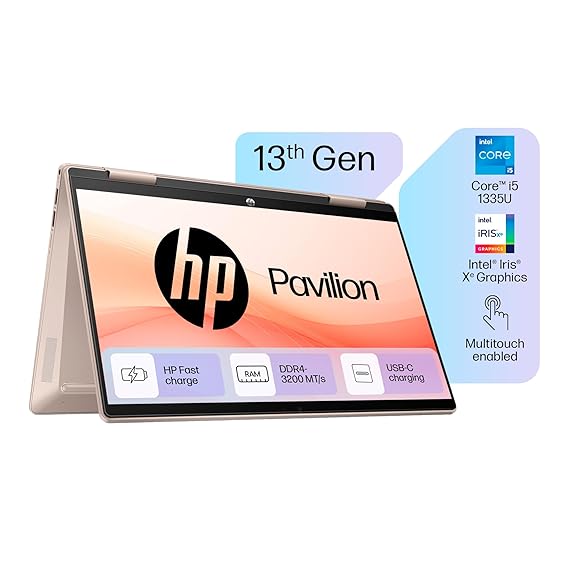
High-range Laptop Segment

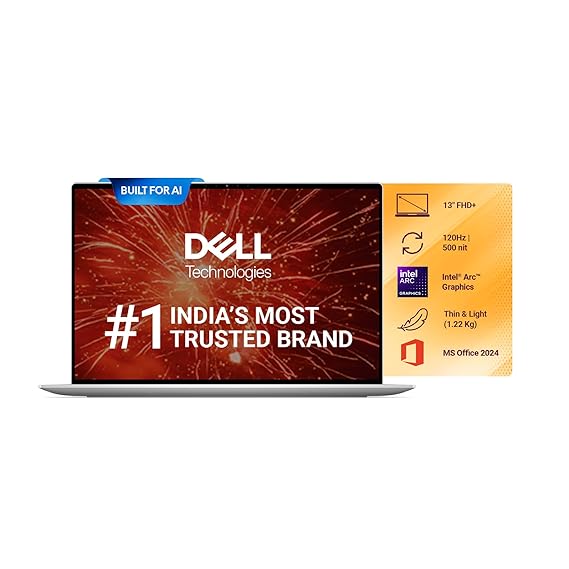

My recommendation best overall picks
Why this one?
- Strong value for money with the right balance of features: modern processor (Intel Core i3 in this case), likely 8 GB RAM and SSD storage — all essentials for student use.
- Good everyday performance for tasks like note-taking, browsing, Zoom classes, light coding or editing.
- Compact enough for students but still big enough screen (15″) to be comfortable for long study sessions.
- The rating (4.5/5) indicates positive user feedback.
- It hits the “sweet spot” between budget and capability — not ultra-premium (which may be over-kill and higher cost) and not too basic (which might struggle).
Quick Comparisons & Why I Selected It
- Some budget models (like now cheaper Acer “Aspire 3” variants) may have weak processors/settings, making them less future-proof.
- High-end models (MacBook Air, Dell XPS etc) are excellent but cost much more — for many students, the extra cost may not justify the benefits.
- The IdeaPad 3 offers a strong “middle ground” for most student needs.
- If your workflow goes beyond basic tasks (e.g., video editing, 3D work), then upgrading to a higher-end model is valid — but for general student use, this one covers nearly everything.
My Suggestion for You
- Use the Lenovo IdeaPad 3 as your “recommended pick” on your blog as the best all-round student laptop.
- Mention that if budget is extremely tight, go for a more basic model (with caveats) and if you will do heavy creative work or want premium feel, consider the high-end models.
- Include your affiliate link for the IdeaPad 3 prominently (“Best Choice for Students”).
- Use the layout you asked for (card style) for this recommendation to draw attention.
Learn More

FAQ Section
1. Which laptop is best for students on a budget?
If you're looking for a budget-friendly student laptop, options like the Acer Aspire 5, Lenovo IdeaPad 3, and ASUS VivoBook 15 offer good performance, 8GB RAM, and SSD storage without costing too much.
2. Is 8GB RAM enough for college use?
Yes, 8GB RAM is enough for notes, browsing, online classes, and basic projects. If you study programming, design, or editing, 16GB RAM is recommended.
3. Which processor is better for students — Intel or Ryzen?
Both are excellent.
- Intel (i3, i5, i7) is great for stability and multitasking.
- AMD Ryzen (3, 5, 7) usually offers better performance at a lower price.Choose based on budget.
4. Do I need an SSD in a student laptop?
Yes. SSD makes your laptop boot faster, open apps instantly, and stay smooth for years. Avoid HDD-only models.
5. Can Chromebooks replace Windows laptops for students?
Yes, if your work is mostly online (Google Docs, YouTube, Zoom). Chromebooks are fast, secure, and budget-friendly. But they are not ideal for coding, heavy apps, or offline software.
6. What is the best screen size for students?
A 14-inch display is ideal — portable, lightweight, and comfortable for long study sessions.
A 15.6-inch is better if you want a bigger screen and don’t travel much.
7. Should students buy a touch-screen laptop?
Touchscreen laptops are helpful for note-taking, drawing, and presentations. But they are more expensive and sometimes reduce battery life. Choose only if you need touch features.
8. Which laptop is best for coding students?
Coding students should choose:
- Intel i5 / Ryzen 5 or higher
- 8GB–16GB RAM
- SSD storage
- Good keyboard
- Models like ASUS ZenBook, HP Envy x360, and Dell Inspiron 14 are great choices.
9. Is MacBook good for students?
Yes, MacBooks are excellent for battery life, performance, and build quality. Especially useful for design, editing, and development. However, they are more expensive than Windows laptops.
10. How much storage should a student laptop have?
A minimum of 256GB SSD is recommended.
If you handle large files (videos, photos, coding projects), choose 512GB SSD or use cloud storage.
Sponsored Ad Section
Smart Byte partners with tech brands to bring you curated deals and reviews.
Check Partner Offers📢 Sponsored by SBO Digital Marketing

✅ Join a Mobile-Based Part-Time Job with SBO!
This Content Sponsored by SBO Digital Marketing.
Mobile-Based Part-Time Job Opportunity by SBO!
Earn money online by doing simple content publishing and sharing tasks. Here's how:
- 🌟 Job Type: Mobile-based part-time work
- 🌟Work Involves:
- Content publishing
- Content sharing on social media
- 🌟Time Required: As little as 1 hour a day
- 🌟Earnings: ₹300 or more daily
✔️ Active Facebook & Instagram accounts
✔️ Basic knowledge of using mobile and social media
For more details:
WhatsApp your Name and Qualification to 9629606177.
a.Online Part Time Jobs from Home
b.Work from Home Jobs Without Investment
c.Freelance Jobs Online for Students
d.Mobile Based Online Jobs
e.Daily Payment Online Jobs
🔖 Keyword & Tag: #OnlinePartTimeJob #WorkFromHome #EarnMoneyOnline #PartTimeJob #jobs #jobalerts #withoutinvestmentjob
🔎 Want to know more about SBO? Visit 👉 SBO More Details
📺 Subscribe for updates: All Rounder Bala
🔔 Disclaimer
This post may contain affiliate links. If you purchase through these links,
I may earn a small commission at no extra cost to you. These earnings help
support the maintenance of this blog and continue bringing you quality
content.
Some product listings or ads displayed may be automated via ad services like
Google AdSense. We do not directly control these ad contents and do not
endorse every product shown.




.jpeg)


 – Read This After You Decide!)
0 Comments